Use forums to organize your discussion topics into categories. Your course can have multiple forums and topics, but you must create a forum before you can create a topic since all topics belong to forums.
- On the navbar, click Communication and choose Discussions.
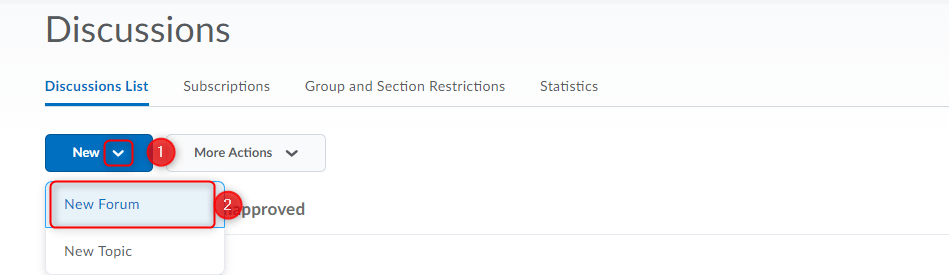
- On the Discussions List page, from the New (1) button drop-down menu, click New Forum (2).
- Enter a title (1) for your new forum.
- Enter a description (2) for your new forum. The Description can be used to give any extra information you may have about this forum or the topics within. You can include rules of conduct, how and if this forum will be assessed, or general information about the forum.
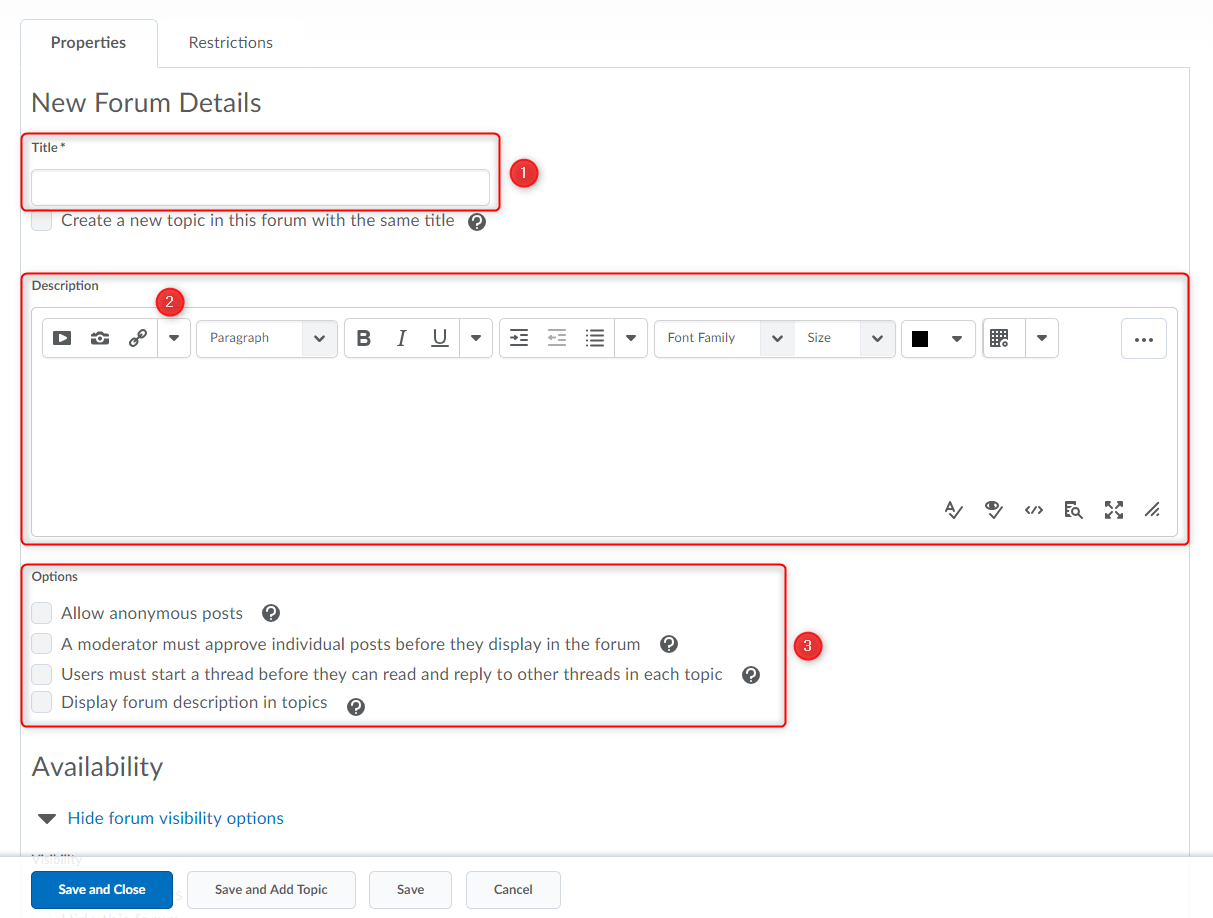
- In the Options (3) section, select any of the following check boxes:
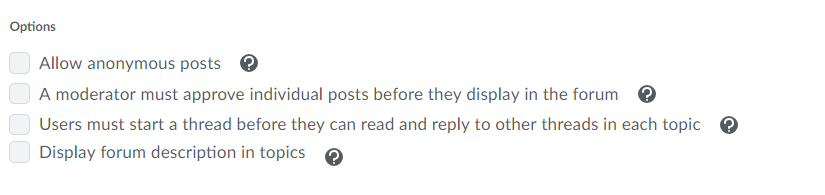
Allow anonymous posts – Selecting this option allows users to post anonymously to topics created within this forum. Anonymous posts display with the author “Anonymous” in the thread.
NOTE: It may be a good idea to also include the option “A moderator must approve individual posts before they display in the forum” when using anonymous posts.
A moderator must approve individual posts before they display in the forum – Selecting this option will require a moderator to approve posts to topics created within this forum before they display to users.
Users must start a thread before they can read and reply to other threads in each topic – Selecting this option will require a user to start a new thread in a topic before viewing or replying to other threads in that topic in the forum. If this forum requires post approval, users will not be able to view or reply to other threads until their thread is approved. This option prevents students from being influenced by each other’s initial posts. It also is a great way to spearhead engagement as it forces each student to initiate a thread rather than simply replying to other student’s initial posts.
Display forum descriptions in topics – To provide instructors the option to display a discussion forum description within a discussion topic description.
- Availability – Visibility – The options under visibility control if and when the student can view the forum and all the topics and threads below it. Often instructors will allow a forum to always be visible and control access with the “Locking Options”.
- Locking Options – Locking a forum will maintain the visibility of the forum, topics and threads, but remove access from the students to create new posts and replies. This can be used to archive a past forum maintaining visibility, or to allow a preview of an upcoming forum.
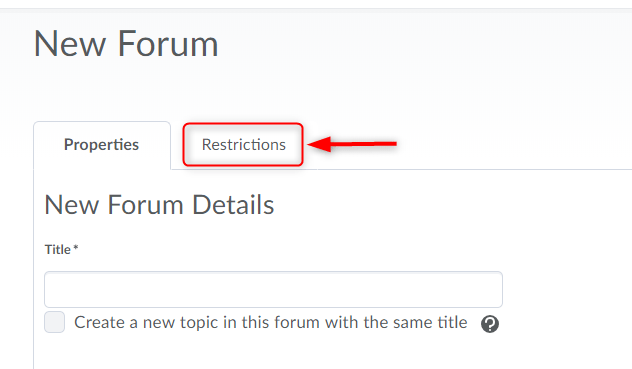
- Restrictions (Tab near the top of screen) – Here you can apply release conditions, or restrict the forum to a group when you are using the groups tool. NOTE: You can create forums from the groups tool when you are setting up groups.
- Click Save and Close.
Before you start to transfer your LEARN grades to Colleague first check to ensure your LEARN gradebook is setup correctly, that student grades make sense, and that you have transferred the final calculated grades to the Final Adjusted Grades column in LEARN. Click here for instructions to transfer final calculated grades to Final Adjusted Grades.
Note: Student grades do not have to be published to students to transfer them to Colleague.
Instructions:
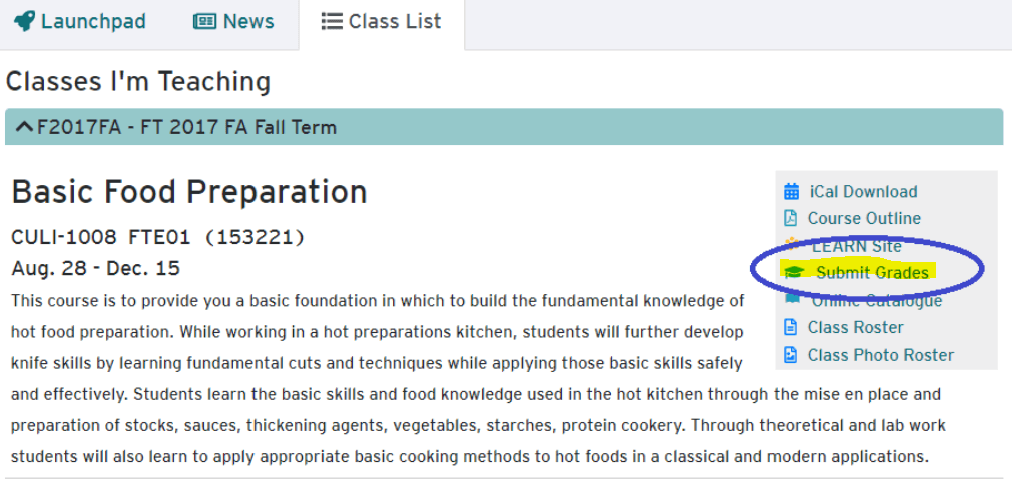
- Go to hub.rrc.ca and open the Class List Click Submit Grades under the course you want to transfer grades for. (Please note that Crosslisted courses for may require the child sections grades to be transferred via the original Webadvisor process. This is a temporary issue which won’t affect future deliveries.)
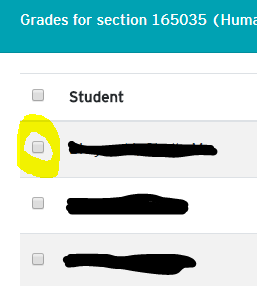
- You should now see a list of students, their grade in the LEARN gradebook, and a suggested grade based on their LEARN grade. If the Suggested Grade already exists and has no drop-down option, this means that the grade has already been submitted to Colleague and can not be changed.

- Select the checkbox beside the student’s name you wish to submit grades for, choose a grade from the drop-down list, or leave it as the default suggested value.If you select DNW or INC for a grade, you must set an expiry date for this temporary grade.
 To select all students in this section, check the box in the heading beside Student.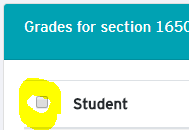
- Once you have made all the changes you want, click Submit Grades. The number to the right of Submit Grades represents the number of students who will have grades submitted. Submitting grades can take some time.
- Once your grades have been submitted, you should see a green success message and on closing the message, you will return to the previous screen. From here you can continue to submit grades as needed.
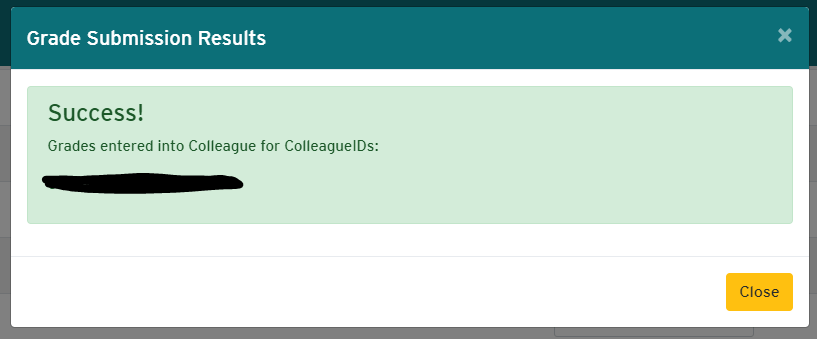
If changes need to be made to grades after submitting please contact your applicable Student Records Officer (SRO) through Enrolment Services.
If you encounter any issues with this process, please email LEARN support at learn@rrc.ca.
]]>There are two ways to ensure your content is accessible: conform to the Web Content Accessibility Guidelines (WCAG) and involve people with disabilities in evaluating and testing your content.
Conforming to WCAG 2.0
The Web Content Accessibility Guidelines (WCAG 2.0) are standards developed by the W3C to assist in the development of accessible digital content. There are a few ways to ensure conformance to WCAG including documentation, checklists, and testing tools.
WCAG 2.0 Documentation
The W3C provides documentation on how to conform to WCAG 2.0 but it is quite extensive and can be overwhelming for beginners.
WCAG 2.0 Checklist
WebAim provides a WCAG 2.0 checklist based on their interpretation of WCAG’s guidelines and success criteria that is easy to follow and a good place to start to learn about what is required to conform to the standard.
Machine Testing using Evaluation Tools
There are many tools that can provide automated accessibility evaluations or audits. These tools can verify conformance to WCAG 2.0 and the level of conformance (A-AAA). These tools are required to assist content developers and designers in identifying errors and providing suggestions for fixes, but they cannot tell you if your web content is actually accessible.
LEARN Accessibility Checker
LEARN has an accessibility checker built in to the HTML Editor that will identify some of the WCAG 2.0 guidelines.
How to use LEARN’s Accessibility Checker
WAVE: Web Accessibility Evaluation Tool
WebAIM’s WAVE is the easiest to use evaluation tool. WAVE is made available as a Chrome extension, a Firefox add-on or online. The online version can be used to evaluate web pages and the browser plugins can be used to evaluate web pages and LEARN content.
Chrome Extensions
- Accessibility Developer Tools
- WCAG Accessibility Audit Developer UI
- Axe Accessibility
- Siteimprove Accessibility Checker
FireFox Add-ons
Web Accessibility Evaluation Tools List
The W3C provides an extensive list of accessibility evaluation tools.
Human Testing
While WCAG conformance can go along way to assisting with making accessible content and evaluation tools can identify errors only humans can really determine whether web content is accessible. To ensure your content is accessible it is recommended that you enlist people with disabilities to test your content. People with disabilities bring their experiences and assistive technologies they use to navigate web content.
Recommended reading
Why accessibility testing with real users is so important
Tips For Conducting Usability Studies With Participants With Disabilities
]]>Description:
This video will show how to set up categories and grade items in your gradebook.
To access the captioning for this video:
- Move your mouse to the lower right side of the video window.
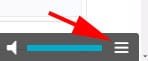
- Click the menu item represented by three dashes
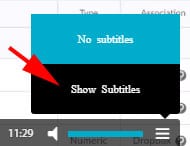
- If captions are available, click “Show Subtitles”
]]>
This video will give an overview of the various elements of a completed gradebook.
To access the captioning for this video:
- Move your mouse to the lower right side of the video window.
- Click the menu item represented by three dashes
- If captions are available, click “Show Subtitles”
When you first set up your gradebook you made a decision about using a Final Calculated or Final Adjusted grade scheme. You can access these grades to view them, release them, or to adjust the final adjusted grade.
- Enter the course and click “Assessments”, “Grades”
- Enter the “Manage Grades” area.
- Click the action button (
 ) next to “Final Calculated” or “Final Adjusted” grade.
 - Click “Grade All”.
- You can now calculate the adjusted grade by clicking the calculator button (
 ), add comments, and if you’re on Final Adjusted Grade you can release the grade to the students by clicking the check box beside their name under “Release Final Adjusted Grade”
- You can release all the students’ grades by selecting the checkbox at the top of the list. This will select all the students and you can then click “release/unrelease” (
 ) to make the adjustments all at once.
 - There are several options (including Recalculate All, Transfer All, Clear All, etc.) hidden under the action button () beside “Final Grades”.

- “Recalculate All” will allow you to change how the final adjusted grade is calculated. This will give you the opportunity to remove grade items from all students final adjusted grade.
- You can release all the students’ grades by selecting the checkbox at the top of the list. This will select all the students and you can then click “release/unrelease” (

You’re able to release these grades to the students from under the “Enter Grades” area in the same way.
You can also access an individual student’s grades by clicking their name and then adjust or release their final grade individually.

(final calculated and adjusted grade for individual student)
Video: Adding Grades to your Gradebook
]]>The following is a list of possible LEARN training sessions. Training is not limited to what is below, and custom training or combinations of sessions are offered.
To organize group/departmental training, or request a session be offered please contact LEARN support by emailing: learn@rrc.ca
Introduction to LEARN (1-2hrs)
This workshop will introduce LEARN (Red River College’s learning management system) and cover the basics including an overview of the most common tools and best practices for delivering your course online.
LEARN Content Area (1hr)
This workshop will introduce the basics of the LEARN content area. Learn how to upload course outlines/documents, how to organize and hide/release materials, as well as how to link to videos or external content.
LEARN Assignment Dropbox (1hr)
Students and Instructors benefit from the ease of use and features of LEARN’s digital dropbox. Students can submit assignments online and instructors can mark from anywhere!
This workshop will focus on the Assignment Dropbox tool in LEARN. We will review the benefits of use, time-saving features, how to build and grade dropbox items, as well as how to link the dropbox to the LEARN gradebook for automatic grade transfer.
LEARN Gradebook Training (1hr presentation, 2-3hrs including “barn raising” workshop)
Today’s students expect to find their grades online and the LEARN gradebook allows you to quickly and easily calculate and deliver those grades to your students.
These sessions will review the LEARN gradebook features and best practices including entering and exporting grades, and associating LEARN assessments to the gradebook for automated marking and grade entry. This is a “barn raising” style session – you will leave with a functioning gradebook for your course. Make sure to bring your course outlines, gradebooks, or grade details so that we can build your gradebook together. Please also email LEARN support learn@rrc.ca to request any development MASTER courses you may need before the session.
LEARN Rubric/Dropbox/Gradebook (3hrs)
This workshop will focus on how to get the most out of the LEARN gradebook, dropbox, and rubrics tools. These 3 items combined can save face to face or distance instructors significant amounts of time (something I think we all agree we can use more of!).
Assignment Dropbox – Students and Instructors benefit from the ease of use and features of LEARN’s digital dropbox. Students can submit grades online and instructors can mark from anywhere!
Gradebook – Does your gradebook sum to 100%? Once set up correctly, the LEARN gradebook is easy to use and one of the most appreciated features by students.
Rubrics – LEARN supercharges rubrics with its Rubrics tool. This will track competencies and objectives, calculate grades, trigger release conditions, and offer pre-programmed feedback to students. All this while saving you time!
LEARN Quiz Tool (2hrs)
This workshop will focus on the Quiz tool in LEARN. Learn to deliver quizzes, self-assessments, tests and exams in LEARN. Learn how to create random sections using the question library, create self-marking assessments that will send the grades directly to the gradebook, and import publisher question banks to include into your assessments.
LEARN Quiz Tool – Statistics and Adjusting Grades (1hr)
This session will introduce the various statistics that are automatically tracked by the quiz tool. From quiz and question statistics to detailed individual student data including details such as exactly when a student saved a question or exited an attempt. These statistics are useful for improving future questions, confirming/diagnosing student issues, or academic integrity issues.
Sometimes a question needs to be adjusted after a student has completed an attempt. In this session, we will review how we batch update student quiz attempts when a question is changed.
LEARN Quiz Tool – Secure Assessment in LEARN (1-2hrs)
Assessment and evaluation, both online and on paper is never 100% secure and is never 100% cheat proof. However, there are steps you can take to reduce the likelihood that students will attempt to, or succeed, at cheating in your courses.
This workshop will outline settings, techniques and best practices in LEARN to ensure your online Exam/Quiz/Test is behaving the way you intended it to, and as securely as possible.
In this workshop, we will review the settings, techniques and best practices for delivering your exams, tests, and quizzes in LEARN.
Example topics to be covered include the use of the Respondus Lockdown Browser, alternate and delayed student views for review, randomization and random question libraries, alternate and special access for accommodations, and more.
We will address any questions or concerns you may have so that your assessments are ready to be delivered securely for your students!
LEARN Awards Tool (1-2hrs)
Are you interested in exploring elements of gamification or badging in your LEARN course? If so, this can now be accomplished with the new “Awards” tool available within LEARN.
This session will show how to:
- Set up and manage awards in your LEARN course.
- Automatically award them based on release conditions.
- Have a group discussion on some course activities you may wish to issue awards for.
More about Badges from D2L Brightspace:
“Badges are awarded based on any criteria determined by the instructor. They are meant to provide digital markers that represent accomplishment throughout a course or program. Badges do not contribute to achieving a passing grade; however, badges are awarded for achievements that also can contribute to the type of work ethic that results in a passing grade. For example, an instructor might create a badge that is based on posting 15 discussion posts in the first month of a course, or on perfect attendance, or on academic excellence. These items are the types of trends that can help a learner to succeed in a course or program.”
LEARN – Rubrics in LEARN (1hr, 2hrs with “barn raising” workshop)
This workshop will focus on how to get the most out of the LEARN rubrics tool.
LEARN supercharges rubrics with its Rubrics tool. This will track competencies and objectives, calculate grades, trigger release conditions, and offer pre-programmed feedback to students. All this while saving you time!
This is a “barn raising” style session – bring along an existing rubric either on paper, or even better in a digital file and we will work as a group to set that rubric up in LEARN. Leave the session with a working rubric!
LEARN – Outcomes, Objectives, and Competency Tracking (2hrs)
The Competencies tool in LEARN can automatically track and report custom competencies, learning objectives, and outcomes. This tool has a sophisticated and customizable structure that allows for objectives to be tracked based on content, grades, discussion participation, elements of a rubric, individual questions, groups of questions in a quiz, etc.
This session will introduce the tool and give an in-depth overview on how to apply it to your new or existing courses.
LEARN – Setting up a CBE (Competency-based Education) Course in LEARN (2hrs)
This course will demonstrate the concept of CBE and how to set up custom pathways for students using a combination of assessment, outcomes, and release conditions.
https://library.educause.edu/topics/teaching-and-learning/competency-based-education-cbe
LEARN – Appeal Proofing your Course with LEARN (1-2hrs)
Within LEARN there is a robust system of data tracking and collection tools. From the obvious such as grades and feedback to the more advanced such as login data, exact histories of quiz attempts, and IP address tracking. The more touchpoints a student has within the Learning Management System, the more accurate a picture can be of what really happened during a course delivery. A student who is no longer in a course can be re-entered and will be connected to all of their data as if it was the last day of class.
This session will discuss best-practices and introduce the data tracking potential of the LEARN system.
]]>As an instructor, having students set up notifications will ensure they receive News updates, or other notifications as soon as possible. This is especially useful for communicating cancellations or changes due to weather or other circumstances.
-
- From within LEARN, click your username and then notifications

- You are then able to enable email and/or mobile notifications, and then define exactly what you will receive notifications on and from which courses.
- Once done, click “Save”
Video:
]]>Intelligent Agents – Create an Intelligent Agent – Instructor
Intelligent Agents – Perform a Practice Run – Instructor
Intelligent Agents – Delete and Restore Intelligent Agents – Instructor
Intelligent Agents – View and Edit the Schedule of an Intelligent Agent – Instructor
Intelligent Agents – Manually Run an Intelligent Agent – Instructor
More videos and documentation available here: Intelligent Agents (IA) Tool in LEARN
]]>