Thursday, May 17, 2018, marks the seventh annual Global Accessibility Awareness Day (GAAD). The purpose of GAAD is to get everyone talking and learning about digital access and inclusion for people with disabilities.
GAAD is for people who are involved in design, development, usability, procurement of technology and its use. GAAD provides events for people interested in making accessible and usable technologies for people with disabilities.
GAAD events listings
GAAD provides a listing of international events including virtual events.
Microsoft Inclusive Classrooms GAAD events
Microsoft is hosting free online events leading up to and on May 17. The events focus on reimagining accessibility and creating more inclusive classrooms
Read more at about the events.
GAAD Events at Red River College
An Introduction to Web Content Accessibility Guidelines (WCAG) 2.1 – presentation
May 17, 2018, 9:30 am to 10:30 am
DM13K Notre Dame Campus
The Web Content Accessibility Guidelines (WCAG) 2.1 are an international standard that defines how to make digital and web content more accessible for people with disabilities. This introductory presentation is facilitated by Jim Hounslow, Instructional Designer with TLTC. This presentation is designed for faculty and staff who create digital course materials or web content.
Register to participate in this presentation
CAPAL’s Web Content Accessibility Guidelines COP webinar
May 17, 2018, 12:30 pm to 1:30 pm
A webinar on using the Web Content Accessibility Guidelines as community of practice.
The Canadian Association of Professional Academic Librarians’ Web Content Accessibility Guidelines community of practice is hosting a webinar presented by Gregg Vanderheiden (PhD), Professor in the College of Information Studies at the University of Maryland. University and college libraries are trying to support students of all ages and abilities including a surprisingly large number who have invisible cognitive, language, and learning (CLL) disabilities. Although many think of accessibility as just for people with disabilities, there are many strategies that can make computers easier to use that are more subtle — and that can be useful to all users.
Registration options:
- Register to participate in this webinar in DM13K Notre Dame Campus
– or – - Register to view this webinar from your workspace
Reimagining Accessibility for Today’s World – film
May 17, 2018
A short film on reimagining accessibility for today’s world by Microsoft.
Discover practical ways to build a more inclusive environment and how accessible technologies such as Microsoft 365 enable everyone to create, communicate and collaborate. Whether you are looking to ensure productivity for your diverse workforce or to increase your organization’s reach and provide delightful services to customers with disabilities, the “Empower every person: reimagining accessibility” short film is for you. The film features IT and accessibility leaders from Microsoft and our partners: US Business Leadership Network, Be. Accessible, TD Bank Group, and Rochester Institute of Technology.
Registration options:
- Register to participate in this webinar in DM13K Notre Dame Campus, 2:00 pm
– or – - Register to watch this film from your workspace
Other GAAD Events:
Introduction to Screen Readers Deque Systems Webinar
Learn more and register for this free webinar May 17 at 12:00 noon
The American Foundation for the Blind (AFB) webinar
Learn more and register for this free webinar 12 noon, May 17
Using WordPress for Accessible Web Development
Learn more and register for this free webinar May 17 at 1:00pm
Captions, Transcripts and Descriptions
Web Content Accessibility Guidelines (WCAG) 2.0 identifies the need for recorded video and audio to have a text transcript and captioning (Success Criteria 1.2.1, 1.2.2 and 1.2.3). Video and audio should also include descriptions (Success Criteria 1.2.5).
Captions
Captions are text versions of the audio that appear on screen in synch with the spoken word in video and animation. Captions should be used in video but are not required for audio. Captions can either be closed or open. Closed captions (CC) can be turned off, where as, open captions are always visible. Captions are required for people who cannot hear the content. They also aid in greater understanding of the content for people who may not be fluent in the language and for those who prefer to read captioned text.
Who depends on captions?
- People who are deaf and cannot hear the audio.
- People who are hard of hearing and cannot hear some of the content.
- People with cognitive and learning disabilities who need to see and hear the content to better understand it.
Example
This video, Introduction to Disability and Accessibility, provides captioning.
Transcripts
Transcripts are text documents based on the audio content embedded in video, audio, animation and interactives. Text transcripts do not have to transcribe the audio exactly and should include descriptions of important visual details. Transcripts are required for people who use screen readers who prefer to scan and read at a pace faster than the spoken word and benefit anyone who prefers to have readable and searchable text.
Who depends on transcripts?
- People who are deaf and cannot hear the audio.
- People who are hard of hearing and cannot hear some of the content.
- People who are blind who access text content on a refreshable (dynamic) Braille display, which converts text into Braille.
- People who are DeafBlind, who cannot hear or see, who access text content on a refreshable (dynamic) Braille display, which converts text into Braille.
- People with cognitive and learning disabilities who need to see and hear the content to better understand it.
Examples
- The Introduction to Disability and Accessibility video, as in the example above, but with captioning and a transcript on YouTube.
- This video titled Empathy hosted in Microsoft video player includes customizable captions and a downloadable transcript.
Descriptions
Descriptions are often referred to as audio descriptions or described audio, and less commonly as video description. Descriptions can be included as an audio track or within the text transcript. Descriptions describes all necessary visual details in a video, such as who is on screen, where they are, what they are doing, their facial expressions, and any writing that is on the screen.
Who depends on descriptions?
- People who are blind or have low vision and cannot see the video.
Examples
The Introduction to Disability and Accessibility video in the above examples, but with described audio.
The Empathy video with audio description on YouTube.
Generating Captions and Transcripts using YouTube
YouTube does an excellent job at providing auto-generated captions but they may require some manual editing to clean up the text. YouTube’s captioning file is used as a transcript. You can also download the captioning file to edit and build your own text transcript.
If YouTube is not your preferred hosting platform, you can still use it to generate captions and a transcript.
Steps:
- Upload a video YouTube to build the captions
- Download the captioning file
- Edit the captioning file for any errors
- Upload the captioning file to your video on another platform
- Include the text from the captioning file as a text transcription
Caption builders
If you prefer to use a dedicated caption builder, these services are recommended by Queens University, Penn State, University of Washington and W3C (World Wide Web Consortium).
- Amara a free, nonprofit service
- MovieCaptioner is available for Mac and Windows a fee
- MAGpie is a free captioning and audio description authoring tool
- Subtitle Horse is a free online service
- DotSub.com is a free online service
Further reading
Use automatic captioning in YouTube
An introduction to Captions, Transcripts, and Audio Descriptions by WebAIM (note: audio description is also referred to as video description or descriptive video)
BBC’s Online Subtitling Editorial Guidelines V1.1 (Note: captioning is referred to as subtitling in the UK)
How to Make Audio Descriptions by DigitalGov, U.S. General Services Administration
8 Benefits of Transcribing & Captioning Videos by 3PlayMedia
]]>There are two ways to ensure your content is accessible: conform to the Web Content Accessibility Guidelines (WCAG) and involve people with disabilities in evaluating and testing your content.
Conforming to WCAG 2.0
The Web Content Accessibility Guidelines (WCAG 2.0) are standards developed by the W3C to assist in the development of accessible digital content. There are a few ways to ensure conformance to WCAG including documentation, checklists, and testing tools.
WCAG 2.0 Documentation
The W3C provides documentation on how to conform to WCAG 2.0 but it is quite extensive and can be overwhelming for beginners.
WCAG 2.0 Checklist
WebAim provides a WCAG 2.0 checklist based on their interpretation of WCAG’s guidelines and success criteria that is easy to follow and a good place to start to learn about what is required to conform to the standard.
Machine Testing using Evaluation Tools
There are many tools that can provide automated accessibility evaluations or audits. These tools can verify conformance to WCAG 2.0 and the level of conformance (A-AAA). These tools are required to assist content developers and designers in identifying errors and providing suggestions for fixes, but they cannot tell you if your web content is actually accessible.
LEARN Accessibility Checker
LEARN has an accessibility checker built in to the HTML Editor that will identify some of the WCAG 2.0 guidelines.
How to use LEARN’s Accessibility Checker
WAVE: Web Accessibility Evaluation Tool
WebAIM’s WAVE is the easiest to use evaluation tool. WAVE is made available as a Chrome extension, a Firefox add-on or online. The online version can be used to evaluate web pages and the browser plugins can be used to evaluate web pages and LEARN content.
Chrome Extensions
- Accessibility Developer Tools
- WCAG Accessibility Audit Developer UI
- Axe Accessibility
- Siteimprove Accessibility Checker
FireFox Add-ons
Web Accessibility Evaluation Tools List
The W3C provides an extensive list of accessibility evaluation tools.
Human Testing
While WCAG conformance can go along way to assisting with making accessible content and evaluation tools can identify errors only humans can really determine whether web content is accessible. To ensure your content is accessible it is recommended that you enlist people with disabilities to test your content. People with disabilities bring their experiences and assistive technologies they use to navigate web content.
Recommended reading
Why accessibility testing with real users is so important
Tips For Conducting Usability Studies With Participants With Disabilities
]]>The rights of persons with disabilities to be able to live free of discrimination in Canada are enshrined in the Constitution of Canada, and in federal, provincial and territorial human rights legislation, such as the Human Rights Act of Canada and the Manitoba Human Rights Code.
In 2010, Canada ratified the United Nations’ Convention on the Rights of Persons with Disabilities (CRPD) which protects the rights of persons with disabilities by ensuring they are full and equal members of society. The Convention ensures that persons with disabilities have access to the physical environment, to transportation, to information and communications technology, and to other services.
Governments at all levels in Canada are required to implement the Convention. Accessibility laws, along with policies, programs, and services are put in place to meet this requirement .
Canadian Accessibility Laws
Ontario became the first Canadian jurisdiction to enact accessibility legislation with the passing of the Accessibility for Ontarians with Disabilities Act (AODA) in 2005. Manitoba was the second when the Accessibility for Manitobans Act (AMA) came into law in December 2013. Nova Scotia passed the Nova Scotia Accessibility Act in 2017 and is currently conducting public consultations to inform the development of their accessibility standards.
The Government of Canada conducted public consultations in 2016 and 2017 to inform the development of a federal accessibility act. Legislation is expected to be presented to parliament in spring 2018.
The AMA
The Accessibility for Manitobans Act (AMA) attempts to ensure people of all abilities have opportunities to full and effective participation in everyday life. The AMA has five standards that address how to identify, remove and prevent barriers in each domain.
The AMA standards:
- Customer Service
- Employment
- Information and Communication
- Built Environment
- Transportation
The Customer Service Standard came into effect on November 1, 2015. The deadline for public sector organizations, like Red River College, to comply with the requirements outlined in the standard was November 1, 2017. The standard addresses training, communication, and respectful, barrier-free customer service.
The guides supporting the standard are written in plain language for better understanding of your role in removing barriers and provide ways you can ensure a accessible service.
Customer Service Standard guides:
- Employers’ Handbook on Accessible Customer Service (PDF) (Word)
- Tips for Employees on Accessible Customer Service (PDF) (Word)
- Consumer Guide on Accessible Customer Service (PDF) (Word)
Proposed recommendations for the Employment Standard were recently submitted to the Minister of Families following public consultations and a public review.
Recommendations for the Information and Communication Standard are currently in development. This standard addresses the authoring, design, delivery and procurement of information and communications products, services, systems and environments.
]]>
The World Wide Web Consortium’s (W3C) Web Accessibility Initiative (WAI) was created to develop guidelines for ensuring web accessibility. These guidelines include the Web Content Accessibility Guidelines (WCAG) and the Authoring Tool Accessibility Guidelines (ATAG).
Web Content Accessibility Guidelines
The Web Content Accessibility Guidelines (WCAG) are guidelines developed to ensure accessible web and digital content. WCAG is for anyone who is involved in the production of web and digital content, including writers, designers, and developers.
WCAG 2.0
WCAG 2.0 is the current set of guidelines for creating web content. WCAG 2.0 guidelines were developed in 2008 and became an international standard (ISO) in 2012.
WCAG 2.0 applies to web and digital content, including:
- Web content: Layout, structure, images, navigation, links, tables, instructions, colour, colour contrast, written text
- Forms: Form elements, buttons, input fields
- Documents: Word, PDF, Excel
- Presentations: PowerPoint
- Time-based media: video, audio, animation, interactives
- Apps: Content, navigation, usability
- Social Media
WCAG Overview – an introduction to WCAG, supporting technical documents, and educational material
Understanding WCAG 2.0 – A guide to understanding and implementing Web Content Accessibility Guidelines 2.0
WCAG 2.1
WCAG 2.1 is built on and extends WCAG 2.0. It is currently in review and expected to be released in spring 2018.
Understanding WCAG 2.1 – A guide to understanding and implementing Web Content Accessibility Guidelines 2.1
Silver
Silver is the successor to WCAG. It is currently in early development.
Authoring Tool Accessibility Guidelines
Authoring Tool Accessibility Guidelines (ATAG) are guidelines for developing accessible authoring tools. ATAG 2.0 is the current set of guidelines.
What is in ATAG
- Making authoring tools accessible for people with disabilities so they can create web content
- Help authors create more accessible web content
Who ATAG is for:
Developers of:
- web content authoring tools (HTML editors), learning management systems (LMS), content management systems (CMS), courseware tools, multimedia authoring tools, blogs, wikis, word processors, etc.
Policy makers, managers and others who:
- Want accessible authoring tools and authoring tools that can produce accessible content
- Can encourage their existing vendors to improve accessibility in future versions to their authoring tools
WCAG 2.0 is the current set of guidelines for creating web content. WCAG 2.0 guidelines were developed in 2008 and became an international standard (ISO) in 2012.
WCAG 2.0 applies to web and digital content, including:
- Web content: Layout, structure, images, navigation, links, tables, instructions, colour, colour contrast, written text
- Forms: Form elements, buttons, input fields
- Documents: Word, PDF, Excel
- Presentations: PowerPoint
- Time-based media: video, audio, animation, interactives
- Apps: Content, navigation, usability
- Social Media
Who WCAG is for
WCAG is for anyone who is involved in the production of web and digital content, including writers, designers, and developers.
WCAG Structure
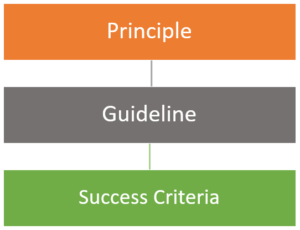
WCAG 2.0 has four principles with 12 guidelines. For each guideline, there are testable success criteria. These success criteria are rated at three levels: A, AA, and AAA.
Principles
WCAG 2.0 has four principles:
- Perceivable
- Operable
- Understandable
- Robust
Perceivable

Can your audience see, hear and touch your content?
Perceivable has four guidelines:
- Text Alternatives for non-text content: controls, time based media (audio, video, animation), CAPTCHA alternatives, images, tests and excercises
- Time-based Media: audio and video, captioning, sign language, media alternatives
- Adaptable: structure, sequence and presentation of content, content can be rendered in another format
- Distinguishable: Colour, audio control, contrast, font size, audio, and imeges of text
Operable
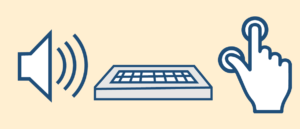
Can your audience operate the interface?
Operable has four guidelines:
- Keyboard accessible: all functionality can be achieved using only a keyboard (input and control)
- Enough time: time to complete tasks, adjustable timing, pausing
- Seizures: avoids three flash threshold that is likely to cause seizure
- Navigable: able to navigate content and destinations (i.e. links), provide multiple ways to go to a destination
Understandable

Can your audience understand your content? Can they use the user interface?
Understandable has three guidelines:
- Readable: define language of page, limit text column width, avoid centre aligned and justified text, use media (images, illustrations, audio and video) to clarify content, use clearly written content
- Predictable: present content in a uniform order and provide consistent navigation
- Input Assistance: reduce errors and support input by helping users understand how to correct an error
Robust
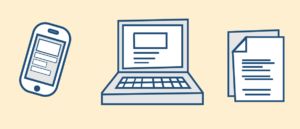
Can your audience access your content on their device? Using their assistive technologies?
Robust has one guideline:
- Compatible: support compatibility with future user agents (software such as browsers and media players) and assistive technologies (AT), avoid deprecated technologies
Resources
WCAG Overview – an introduction to WCAG, supporting technical documents, and educational material
Understanding WCAG 2.0 – A guide to understanding and implementing Web Content Accessibility Guidelines 2.0
]]>The World Wide Web Consortium’s (W3C) Web Accessibility Initiative (WAI) has developed guidelines for ensuring web accessibility. These guidelines includes the Web Content Accessibility Guidelines (WCAG) and the Authoring Tool Accessibility Guidelines (ATAG).
Understanding WCAG 2.0 – The current ISO Standard for producing web accessible content.
WebAIM’s WCAG 2.0 Checklist for HTML documents – A checklist for complying with WCAG 2.0 guidelines.
Understanding WCAG 2.1 – WCAG 2.1 is built on and extends WCAG 2.0. It is currently in review.
Silver – successor to WCAG is in development.
Authoring Tool Accessibility Guidelines (ATAG) Overview
- Making authoring tools accessible for people with disabilities so they can create web content
- Helping authors produce accessible content
Guidelines and Standards
18F Accessibility Guide – United States Government Accessibility Guide
U.S. Web Design System – United States Government Web Accessibility standards
A11Y Style Guide – A living style guide for beginners to experts
Clear Print Accessibility Guidelines – accessible print guidelines developed by Canadian National Institute of the Blind (CNIB)
Toolkits and Resources
GOV.UK Accessibility blog – UK Government’s accessibility blog covered under Open Government Licence (OGL) and Creative Commons (CC)
Educator’s Accessibility Toolkit – Accessible Campus for universities to meet their obligations of the Accessibility for Ontarians with Disabilities Act (AODA)
Accessibility Hub – Queen’s University
Includes:
- Accessible documents and forms
- Website accessibility
- Social Media accessibility
- Video accessibility
Web and Digital Accessibility articles
Introduction to Web Accessibility – An introduction to web accessibility by WebAIM: Web Accessibility in Mind
Users, Disabilities and Web Accessibility – articles by WebAIM: Web Accessibility in Mind
Accessibility & Me – An introduction to web accessibility
Introduction to Web Accessibility – Web Accessibility Initiative (WAI), World Wide Web Consortium (W3C)
The A11Y Project – A community-driven effort to make web accessibility easier: How-tos, myths, quick tests, quick tips, Assistive Technology, basics
24 Accessibility – Articles on all subjects related to digital accessibility
]]>Inclusive Design is about putting people first. It’s about designing for the needs of people with permanent, temporary, situational, or changing disabilities — all of us really. In this webinar Henny Swan will introduce the 7 principles and how they can be used alongside standards and guidelines, to take products beyond compliance.
Presenter
Henny Swan is an Accessibility Specialist with over 12 years experience in inclusive design. She is a Senior Accessibility User Experience Specialist at The Paciello Group (TPG) and prior to that worked on cross device media player accessibility at the BBC as well as developing BBC Mobile Accessibility Standards and Guidelines.
The webinar
This webinar is relevant to anyone involved in the design and development of web content and digital environments — instructors, designers, developers, and policy makers responsible for Accessibility for Manitobans Act (AMA) activities.
TLTC and eTV are hosting this webinar on Wednesday, February 21 from 10:15-11:30 a.m. in eTV studio B. Register to attend this webinar.
If you are unable to attend this webinar at eTV or prefer to participate on your own you can register online.
For more information contact Jim Hounslow.
]]>A collection of resources to support the 7 Principles of Inclusive Design webinar.
Articles and Blogs
Inclusive Design Principles – Henny Swan, Ian Pouncey, Heydon Pickering, Léonie Watson, The Paciello Group (TPG)
Inclusive Design Principles and how to use them – Henny Swan, The Paciello Group (TPG)
Women in UX: Meet Henny Swan, Advocate for UX Inclusivity – Henny Swan’s tips for creating more inclusive UX designs
If you want the best design, ask strangers to help – Jutta Trevirans, professor and director, Inclusive Design Research Centre (IRDC), OCADU
IHENI – Henny Swan’s blog
Inclusive Design Research Centre (IDRC) – OCADU
Video
An Introduction to Inclusive Design – Microsoft Design
Empathy – Microsoft Design
Inclusive Design Principles – Henny Swan : #ID24 2017 – The principles of Inclusive Design, The Paciello Group (TPG)
Henny Swan – The Velvet Rope – #NUX5 – Accessibility and Inclusive Design, The Paciello Group (TPG)
a11yTO Conference – Henny Swan on the principles of Inclusive Design (starts at 34:33)
Toolkits
Microsoft Inclusive Design: toolkit, activities and resources – Microsoft Design
Inclusive Design Toolkit – University of Cambridge
Inclusive Design – Barclays Bank
Posters
Inclusive Design Principles (compressed zip file) – The Paciello Group (TPG)
Inclusive Design Principles single poster – Barclays Bank
Inclusive Design Principles individual posters – Barclays Bank
On Twitter
@paciellogroup – The Paciello Group (TPG), accessibility testing/evaluation, compliance audits, and training.
@iheni – Henny Swan, accessibility specialist, The Paciello Group (TPG)
@LeonieWatson – Léonie Watson, accessibility engineer, The Paciello Group (TPG)
@idrc_ocadu – Inclusive Design Research Centre (IRDC), OCADU
@JuttaTrevira – Jutta Trevirans, professor and director, Inclusive Design Research Centre (IRDC), OCADU
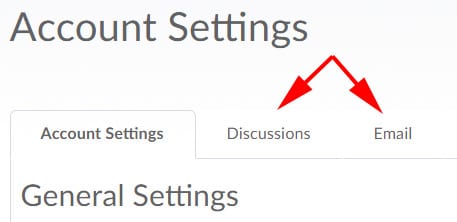
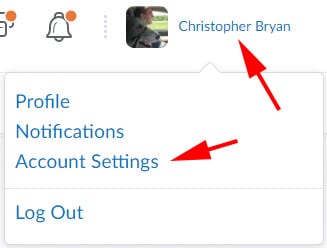
]]>Access these settings by first logging into LEARN, click your name in the upper right-hand corner of the page, and click “Account Settings”.
Font Options
You are able to adjust the font size, as well as select the “OpenDyslexic” font to improve readability.

Settings for Assistive Technologies
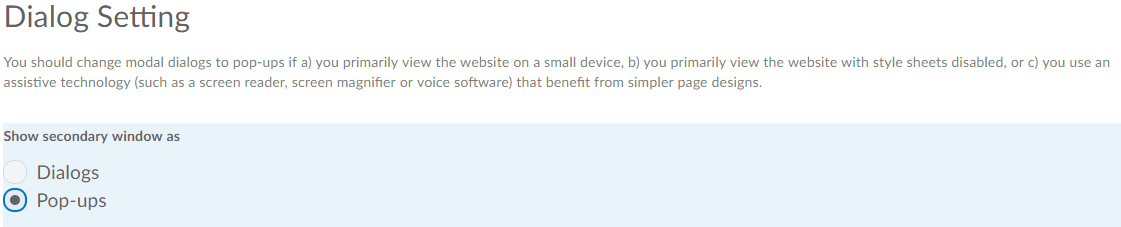
Dialog Setting
By default, secondary windows are displayed in Dialog boxes. You may wish to change this to Pop-ups if you use an assistive technology (such as a screen reader, screen magnifier or voice software).
HTML Editor Settings
You can opt to turn off the rich text editor in LEARN. The HTML editor enables you to enter text and HTML in the system. It has many additional rich text features. If you use assistive technology such as screen readers, some of these features might be difficult to navigate.
Reading Content
Some tools automatically mark content as read as you scroll it into view. If you use an assistive technology such as a screen reader then you may wish to disable this feature.
Video Settings
There is an option to optimize video presentation for programmatically-driven assistive technologies.
Discussions and Email Settings
Though not specifically accessibility settings, you are able to customize your experience using Discussions and Email within LEARN.
Access these settings by the corresponding tabs at the top of the page.